Configure macOS Version Upgrades in the Library
KACE Cloud allows administrators to install specific macOS versions on managed devices. These configurations are available in the Security Library. You can use them to target a specific major or minor version, if needed. This feature is only supported on macOS 12.0+. Note that Apple now uses Declarative Device Management (DDM) for automated version upgrades on managed devices, which improves upgrade reliability. As part of this change, the "Download and Install" options and install deferment are no longer available. Devices will upgrade to the specified version at the earliest opportunity.
|
|
NOTE: macOS version upgrades require an additional KACE Cloud Secure license. This license also provides access to Windows Feature updates and patch management settings. To obtain a KACE Cloud Secure license, contact KACE Cloud Sales. A free 14-day KACE Cloud Secure trial license is available and can be started directly from KACE Cloud. For more information about KACE Cloud licensing, see About subscriptions and licensing. |

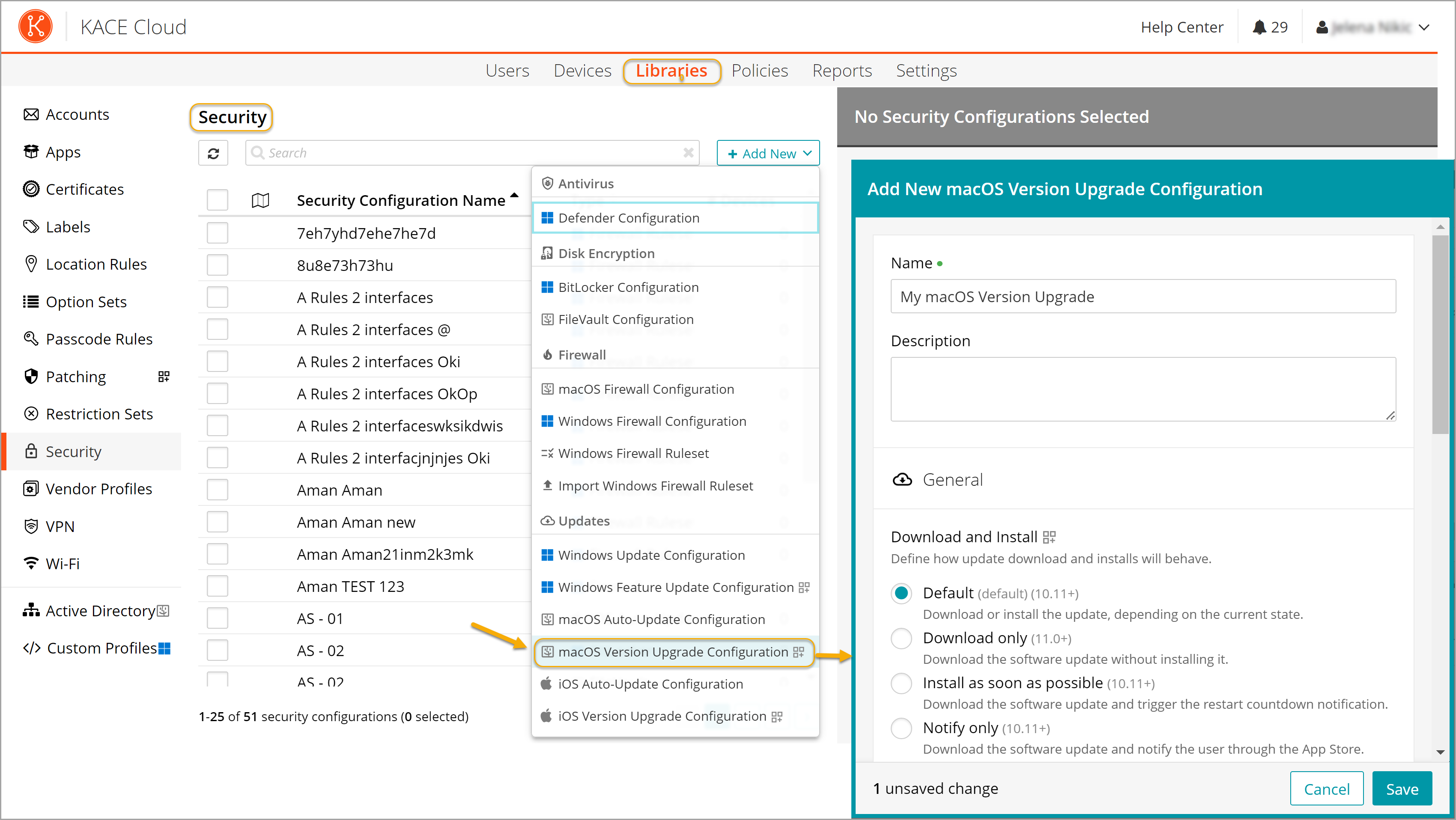
To create or edit a macOS Version Upgrade Configuration:
- Select the Libraries tab in top navigation.
- Click Security.
- Complete one of the following steps:
- To create a new macOS Version Upgrade Configuration, choose Add New > macOS Version Upgrade Configuration.
- To edit an existing macOS Version Upgrade Configuration, select it in the list, and click Edit.
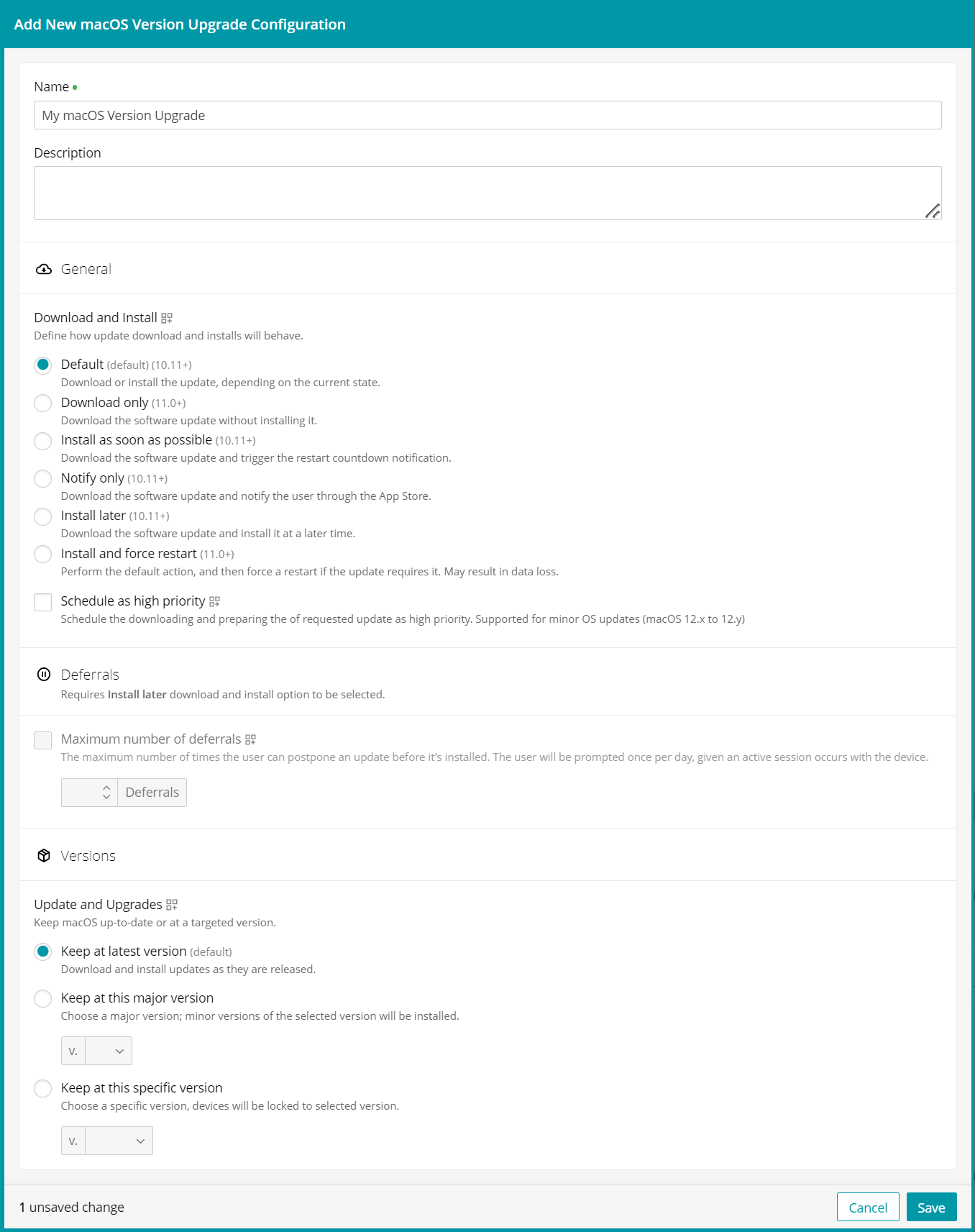
- In the configuration view that appears on the right, ensure the configuration has a unique Name, and provide a Description, as applicable.
- For each configuration setting that you want to apply to associated devices, select the appropriate option.
For example:
- To keep the device on the most recent available version, in the Versions section, select Keep at latest version.
- To target a major macOS version and any minor versions associated with it, in the Versions section, select Enforce this minimum major version, and then select the major version number.
- When done, click Save.